Instructions
13 Aug, 2025
Setting Up Zoiper with SIPUP on Your Smartphone
Step-by-step guide to connect Zoiper with SIPUP for VoIP calls on iPhone and other smartphones.
To use Zoiper with SIPUP telephony on smartphones (in this example, iPhone), follow these steps in order:
Instructions:
- Get your SIP credentials after registration — they will be sent to your email and are also available in your control panel:
https://my.sipup.org/billing/devices/user_devices
You will see:- Login (numbers)
- Password
- Host — sip.sipup.org or IP 178.162.235.72
- In Zoiper, do not choose the suggested providers. Select Manual Configuration:
- Settings → Accounts → + (Add Account)
- First question: "Do you have a login and password?" — click YES
- Two options will appear: Choose provider or Manual Configuration. Select Manual Configuration
- Then choose SIP account
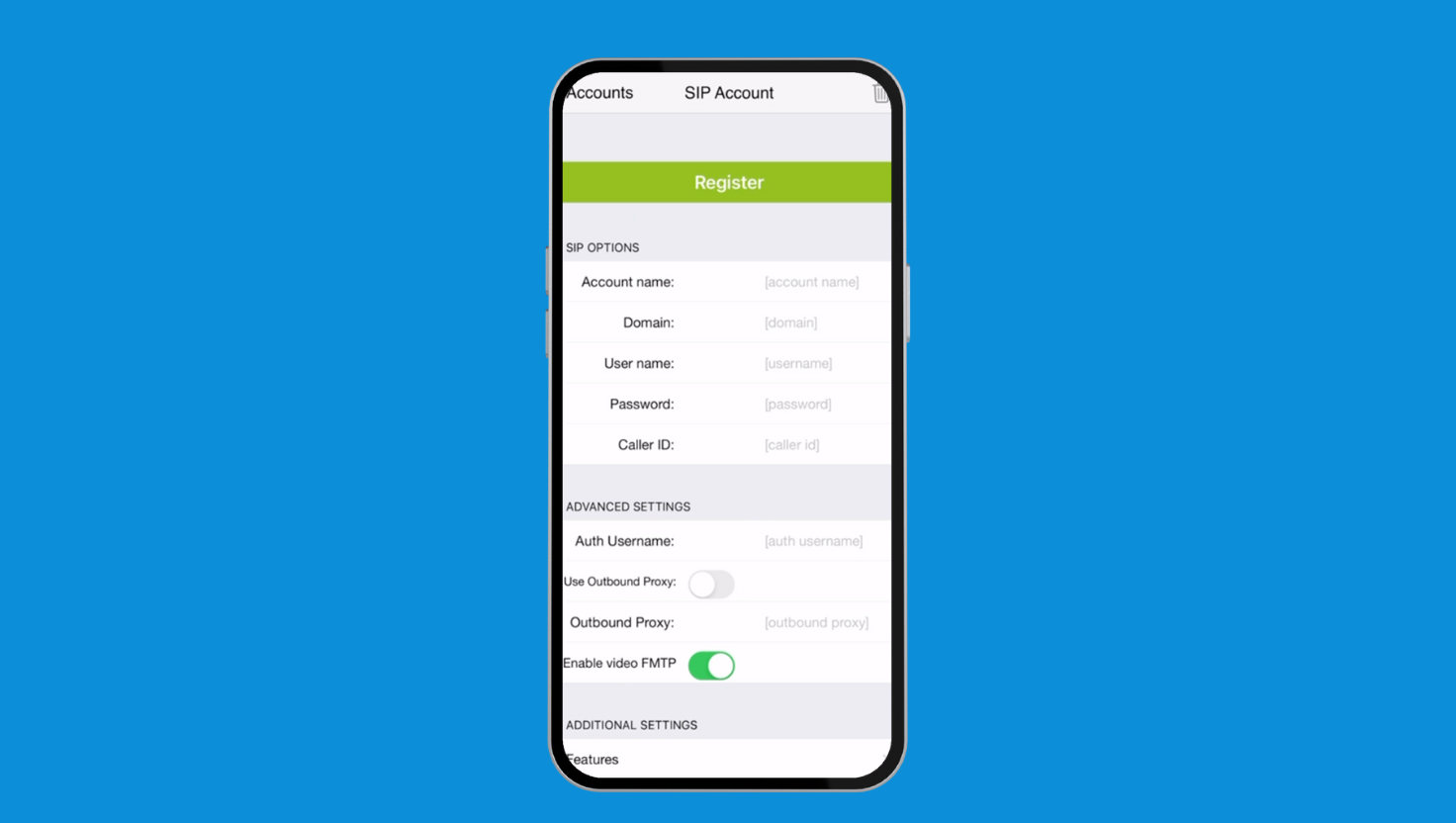
- Fill in the account details:
- Account name: any name for your convenience
- Domain/Host: sip.sipup.org or 178.162.235.72
- Username: your SIP login
- Password: your SIP password
- Caller ID: leave empty (softphones often transmit it incorrectly)
- Advanced settings:
- In Auth Username, also enter your SIP login
- Tap Register (top button in Zoiper)
- Check registration result:
- If successful, you will see OK
- If not, a red error code will appear
- Making calls:
- If you have sufficient funds in your account, you can start making calls
If you encounter any difficulties, you can always contact technical support: https://t.me/sipup_sup
Copy link